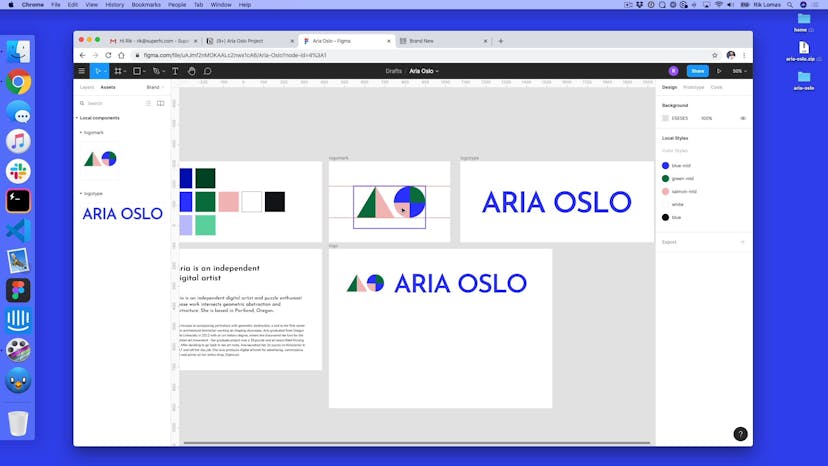
Learn how to add a logotype to your design using a separate frame. Adjust the typeface, colors, and spacing to create a cohesive and eye-catching logotype for your project.
Transcript
00:00
- [Rik] So now that I've got my logomark, I also want to add some logotype
as part of this as well. So I'm gonna do this on a separate frame. So I've got my logomark here. Next to it, I'm gonna make a new frame. So click here, and make it next to it. Something that looks a
little bit like this. There we go. Again, I'm jut gonna make this
frame have a name, Logotype. So in here it's gonna look kinda the same. I'm gonna use the same kinda
typeface as what we have here.
00:27
The typeface I'm using is Josefin Sans. So in here, I'm just gonna
quickly type in Aria, oops gotta spell the name correctly, Oslo, and again what I can do is
fill this in a certain color. Give it a certain size, maybe I wanna make this
a little bit bigger. So, here the first thing
I'm gonna do is fill it in. Well, remember I've got a
fill, which has a color. So I'm gonna use the
blue, the mid blue color. And again, I'm just gonna
make this a little bit bigger. Just to kinda fill this in.
00:54
How would it look next to that? Not too worried about how it
looks next to this just yet. I kind of just wanna
fill this in some space. Maybe I'm gonna make
this a little bit wider. Here we go. And make it in the middle. Perfect. And now what I can do is play
around with some of this type as well and maybe make
it messed up as well. Maybe I wanna make it uppercase. So how would I make it,
for instance, uppercase? Well, in here, I can just
literally write is as uppercase.
01:20
I can also change some of
this stuff using More Options. So for instance I might wanna make it all uppercase like this. Change some of the space in
between some of the letters so maybe make it a little
bit tighter for instance. So again, I can just go in here, make it minus 10%, little bit too tight. Maybe minus five, a little bit nicer. Now one thing that I could
do is really mess around with this type, and just right click and do a Outline Stroke.
01:49
And what this will do, is it will let me actually kinda play around with this. I can stretch it. I can add some more things to it. I can add some more
shapes and give it a mask, but here what I've got is some
kind of control over this. I can change some of the letters. You double click and I
can actually change some of this completely if I
(chuckles) really wanted to. But here what I've got
is a basic logotype. In the next video, what
we're gonna do is combine the two things together,
and we'll talk about how we can make this really, really easy.
Private notes
A place for you to post notes about anything on this page. Only you can view your notes.