Setting up a layout in TouchDesigner
Transcript
00:00
- So let's work with TouchDesigner now to make it so that this isn't in the background. It's a little bit hard to see where all these wires go. So the first thing I'm gonna do is just remove my tags on my moviefilein. So I'm just gonna turn these off on both at the blue dots. Now, if you like it like that, that's totally fine. You can keep it as is. What we're gonna do is split it up in a different way instead. So how do we go about doing this? Now the first thing I'm gonna get rid of is my palette on the left-hand side.
00:29
I'm not actually gonna use anything as part of this. So to get rid of this, I'm gonna click on the second button up here, which is called Open Palette. Now the palette's already open, so if I click it, it stays. But then, I need to click it again to make it disappear. So we have a bit more room to play in now. Now you might notice next to this, on this kind of right-hand side, is something called Pane Layout. At the moment, we're using this kind of big pane where all of our network is within this entire singular area.
00:58
But what I wanna do is split this up. I want my final image to be on the left-hand side, and then my main kind of network on this right-hand side. So I want this kind of a picture to stay on this left side here. To do this, I'm just gonna split the layout. Pane layout is gonna be split in two, just kind of left and right one. So I'm just gonna open this up. Basically, what this will do is kind of split this into two, this kind of network here and network here that kind of work in two different ways.
01:26
Which we could use if we're trying to control two different areas at the same time as well. We could keep this as is. But I'm gonna actually just split this up in a slightly different way. So I'm gonna split this. I'm gonna drag my line just so it's kind of not taking up all of the area. It's not 50, 50, it's more like 25, 75 instead. But I want this area over here to display, basically, whatever is selected in my displays here.
01:52
So to do this, we're gonna go onto this area here. Notice there's this little down arrow, which is called the Pane Type. And both of these will have this. So there's one here and there's also one here. I want this left-hand side to be the viewer. Now I'm gonna be using something called the TOP Viewer. So we'll talk about TOPs in a second. But we're gonna select TOP Viewer. And what this will do is it will currently gray this out. So here will be whatever we want to view.
02:21
On the right-hand side will be what we want to edit. So what do we wanna view? Now, we wanna view this output. So if I'm gonna click out1 again, I'm gonna display it. I'm gonna click this blue circle. And what we'll see here is this will display on this side, but it's also displaying in the background as well. Now, how do we get rid of this background display too? Well, all I'm gonna do is right-click. There are a few settings in here as well. There's actually quite a lot of settings.
02:49
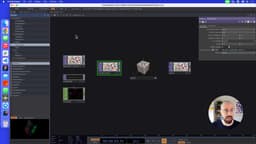
So if you wanna look through and click different things and see what works for you, every single person will work differently. I'm gonna go to Display and I'm gonna get rid of my Backdrop TOPs. So my operators, my display, disappears. So this is a setup that I'm gonna use for every single project because I want it to be clear. And you can see on the left-hand side that we have this output. And then, on the right-hand side, we have this editor kind of mode.
03:17
You can set it up however you want, but this is a simple way for me to actually show you what's going on. So this is where we're gonna be working. This is the kind of area that we actually wanna work in. And you can control and change the layout to be whatever you like.
SuperHi FM
Want some ambient music in the background? Play our radio station!